How to Copyright Watermark Your Images in Lightroom 3
One complaint about Lightroom 2 is its lack of a feature enabling you to add copyright watermarks to your images as you Export them. There are workarounds that make use of the Identity Plate option in the slideshow and print modules but these are cumbersome at best. In Lightroom 3, at last, watermarking is built in to the Export module (and available in the Print, Slideshow and Web modules).

To see this new feature at work, make sure that you have downloaded Lightroom 3 Beta 2 from labs.adobe.com – this is the most recent beta. Select one or more images in the Library module, right click and choose Export > Export. In addition to choosing options such as the export location, file name and file type and sizing an image you will find the new watermarking option near the bottom of the dialog.
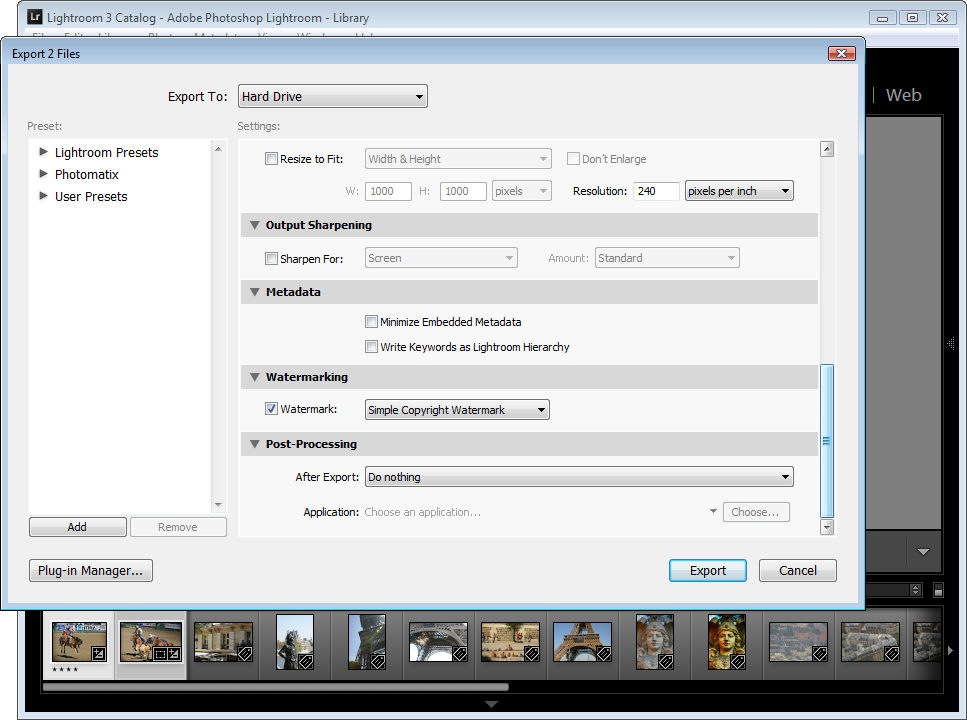
Enable the Watermark checkbox and from the dropdown list, select Edit Watermarks to display a watermark dialog. You can apply a text or a graphic watermark. For a text watermark, click the Text option button, then from the Text Options select your Font and Style.
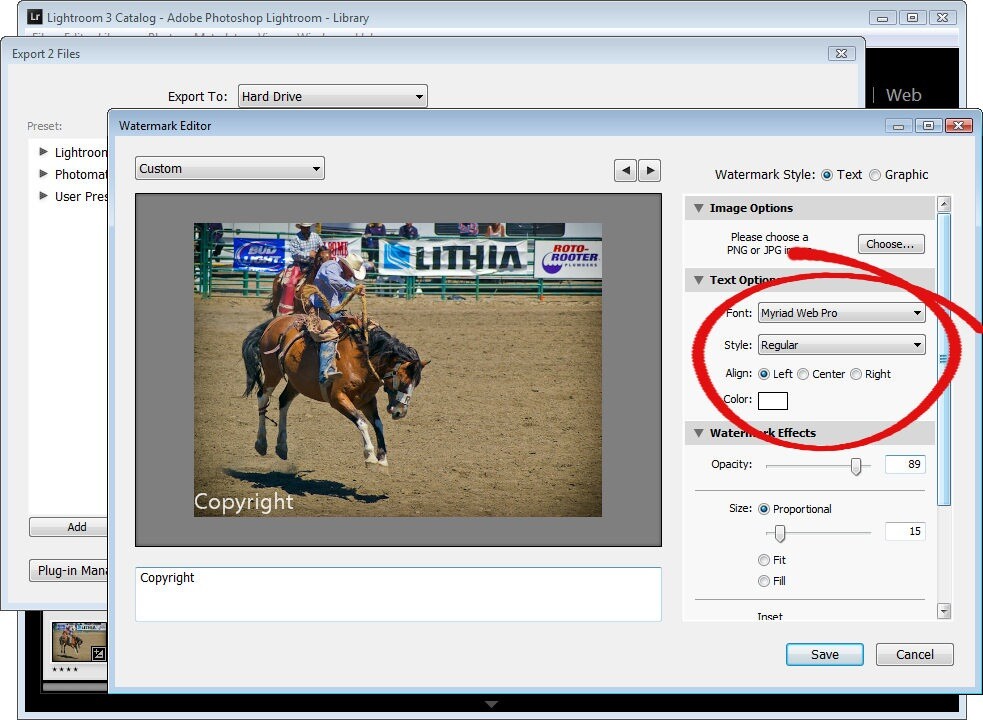
Alignment controls the text alignment within the small box that it is placed inside so you will use this option if you have multiple lines of text. Color is the text color which you can select from a color picker – unfortunately there is no contrasting shadow added so you have to choose a text color that works on most images.
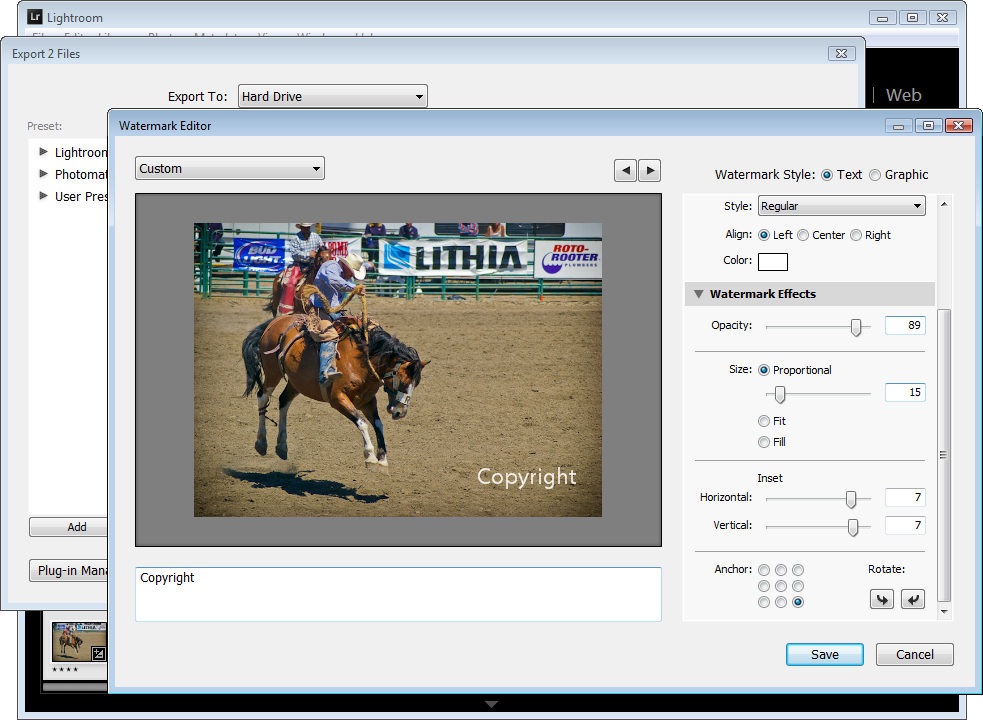
The Opacity setting adjusts the transparency of the copyright text and you can adjust this downwards to blend the copyright text in with the underlying image a little. Select Proportional size, Fit or Fill as desired. For my watermark I selected Proportional which is typically the option you will want to use.
The Anchor options allow you to place the copyright text within one of nine areas on the screen varying from top/left through center and to bottom/left.
Once you’ve selected the Anchor, adjust the Inset values to bring the text in from the vertical and horizontal margins so that it doesn’t sit at the very edge of the image.
You can rotate the text by clicking one of the Rotate options.
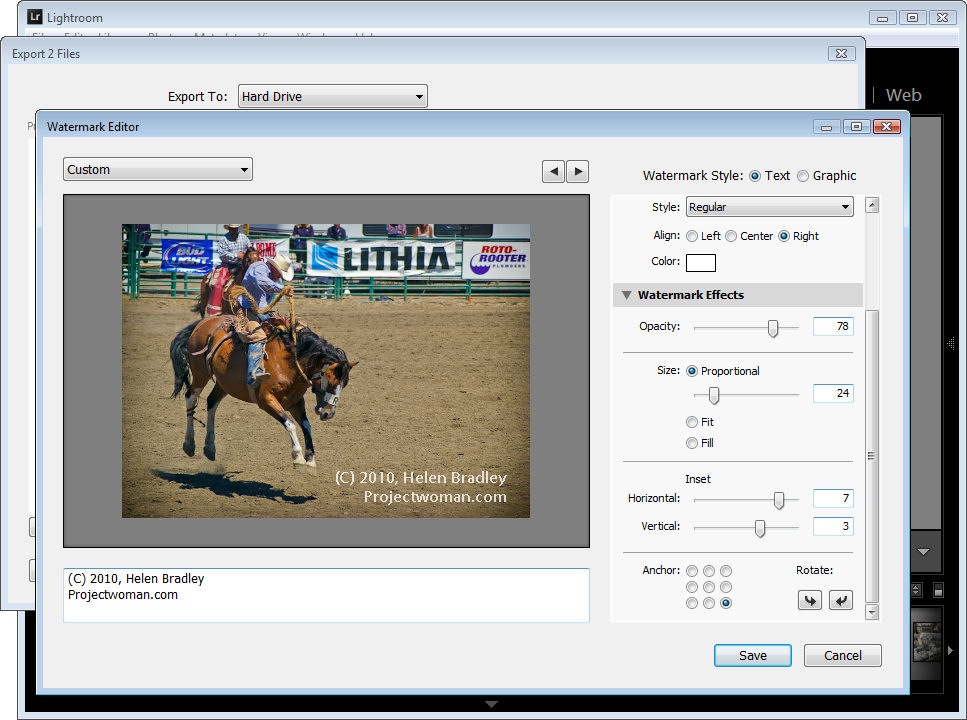
On the left of the dialog under your image is a text box with the word “copyright” in it. You can replace this with your own text – to create the copyright symbol type (C).
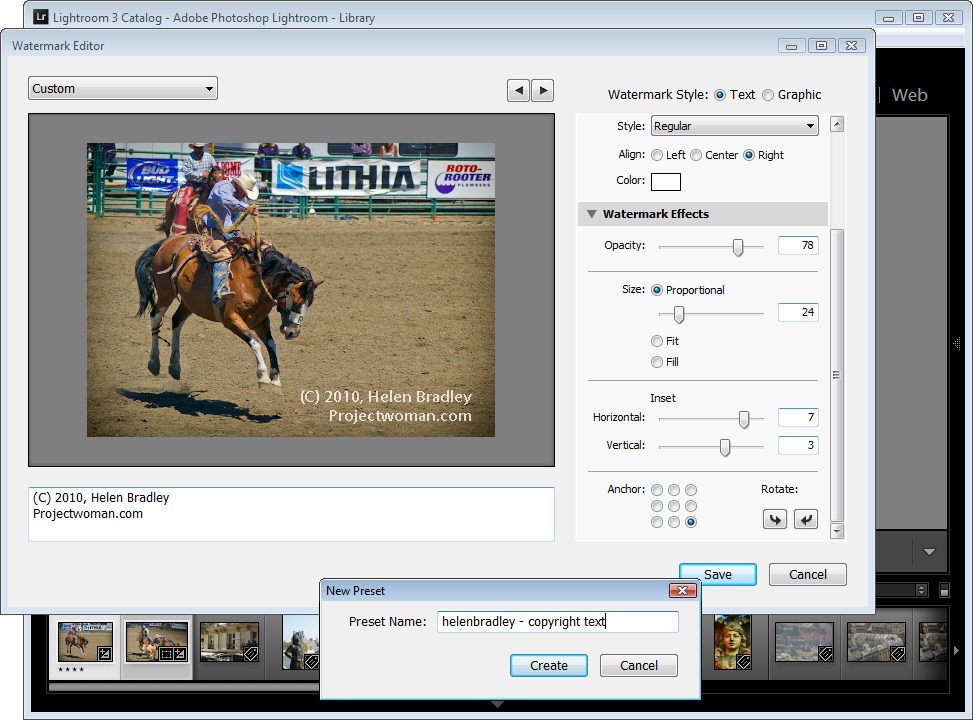
When you’re done, click Save and type a name to save the copyright data as a preset so you can use it again in the Export or any other module that supports watermarking of images.
If you are editing an existing watermark, click the down-pointing arrow in the top left of the dialog where it will show (edited) after the preset name and choose Update Preset or Save Current Settings as a New Preset depending on what you want to do.
Instead of a text watermark, you can use an image you have created. To do this, enable the Image option at the top of the dialog and click to select the image to use.
A watermark saved as a JPG image will not be transparent so the watermark will appear as a solid rectangle on your image, as shown here.
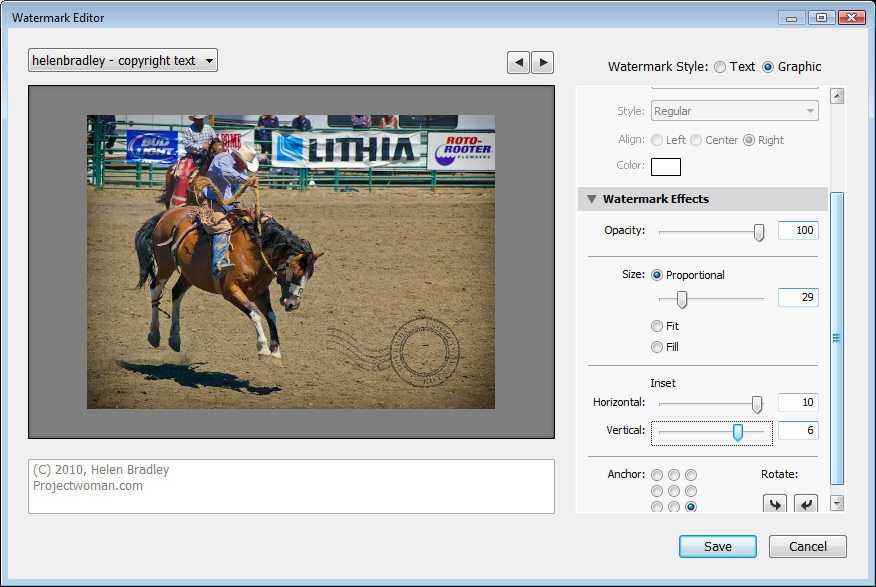
If you want to have a transparent background around your watermark, create the watermark as a PNG image with transparency in Photoshop or another editor, and import that as your watermark.
When you export your images, your watermark will be automatically added to them.
These same watermark options are also available, for example, in the Flickr Publish Services so you can automatically watermark images as you upload them to your Flickr account.





29 Responses to “How to Copyright Watermark Your Images in Lightroom 3” - Add Yours
April 15th, 2010 at 1:17 am
Of course, the smartt fill feature of CS5 will allow anyone to easily remove the watermark
April 15th, 2010 at 10:43 am
Hmm… I use photoshop and just create a layer and then select blending options to make it less opaque and reduce the fill. It is really simple and works good for me!
Cabin Fever in Vermont
April 15th, 2010 at 12:09 pm
Wish it can use metadata parameter like {copyright} instead of typing up and save. So each photo I export/publish with same template may watermark different text of copyright message depends on the metadata hold by each image.
You can water mark shooting date time or shooting info or anything in there…
I this matter LR2/Mogrify offers still much better option.
April 15th, 2010 at 12:47 pm
I’ve always wondered this when I use watermarks: that is can other people simply work back the correct colour to mask the watermark? because unless it is set to 100% opacity, there will still be quite some colour information left.
April 15th, 2010 at 3:50 pm
Ben’s mention of LR2/Mogrify is where I was going to go with this comment. I was happy to see watermarking in LR3beta, but LR2/Mogrify is just an amazing little piece of digital kit–for those of you who are not wishing to subject your production machine to a beta application like LR3 beta, check out LR2/Mogrify. Best donationware app I’ve ever bought. Makes resizing/marking/bordering a snap.
April 15th, 2010 at 8:56 pm
Hi
I’m not sure if I’m missing something here or not but I have added watermarks to my exports, using Lightroom II, for some time.
In the export dialog box, under >MetadataCopyright< box of your metadata.
April 16th, 2010 at 2:00 am
so basically this is an article based on the comments left in the previous watermarking article from just a few days ago… only taking the credit for all of it.
April 16th, 2010 at 9:23 am
@Mark.. ah that would be No!
I submitted this article to DPS on the 1st of April (well before the post you mentioned was published). My post went into the posting queue and was published a couple of weeks later. Unless I have a gift of foresight that even I am unaware of – this is actually my own work.
@al the method you are using adds it to the image Metadata not as an image or text right on top of the image. The two processes are independent from each other, totally different in how they work and not mutually exclusive. Most users will be glad to have both options – the visible watermark being a way to deter others from stealing your images.
Helen
April 16th, 2010 at 10:44 am
Hi Helen,
Nice info,
Just wanted to add that if you want a proper copyright symbol like this © on Windows computer you have to Press “Alt” key and type “0169″. And on mac you press “Option” Key and press “G”. Obviously both without quotes
Cheers
April 16th, 2010 at 5:35 pm
Hello Again
April 16th, 2010 at 5:42 pm
Hello Again
For some reason the last part of my post is garbled/missing. I was trying to say that if you tick the “Add Copyright Watermark” box in the “MetaData” area of the >Export Dialog Box< Lightroom II will add, as a visible watermark, whatever text you have entered in the "Copyright" box in your metadata.
The watermark is added to the bottom of the exported image and is clearly visible.
Check it out
Al
April 17th, 2010 at 10:41 pm
LR2 copyright metadata works great for me, and the little text it adds to the bottom left of my exports meets my needs, but you can do a lot more with LR3.
For those who don’t know, you can create a Metadata Preset by right clicking on an image. Add the copyright information in the appropriate field (the “Copyright” field contains the text that will appear on the image) and save the preset. Then you just apply the preset to any image before you export and the text appears in the image.
April 18th, 2010 at 3:12 am
Whoo hoo! I’m excited! Currently do not have Photoshop and now I can protect my images for FB etc with my logo!
April 22nd, 2010 at 1:12 am
To follow up on Dharmit’s comment. At least here in the USA the (C) is not a recognized copyright symbol. You must use either the circled C, the word “Copyright” or the abbreviation “Copr.” If you’re going to take the time to watermark your images make sure you’re using a recognized symbol.
May 2nd, 2010 at 4:08 am
The last revision of the Copyright convention eliminated the need to put a copyright symbol on printed work such as photography – all such images are implicitly copyrighted by the creator of the image – it doesn’t matter whether or not your use the (C), or actually copyright character symbol or whatever. Previously only the word Copyright or the copyright symbol were legally recognized in law.
The purpose of putting this information on a image is to remind and warn people that the image is indeed copyrighted. For full legal backing one should register the images with the U.S. Copyright Office (copyright is Federal law).
However, thanks to the recent amendments to the Digital Millennium Copyright Act, it is now illegal to remove any type of copyright notice off of an existing image. The following URL has a more detailed explanation:
http://rising.blackstar.com/heres-why-you-should-add-your-name-and-copyright-notice-when-posting-photos-o.html
May 7th, 2010 at 5:14 am
Do you know if there is something similar to this in Gimp? Other than using the Text. I cant afford any of the Photoshops and so I use Gimp.I’ve tried all kinds of things. I use Picasa as of now to watermark my images. I was wondering if you also knew about another question I have. The way I’ve always understood it, a photo is not LEGALLYcopyrighted just by putting a © symbol on it. I always thought you have to pay a company to bind it to you legally. or is the symbol enough to do that? Any info you would have for me would be great, thanks in advance. ~Amber
May 11th, 2010 at 9:58 am
Amber,
Don’t confuse copyright and copyright registration. Any image you capture, you own the copyright. If you don’t register your copyright it makes it inherently difficult to collect damages if your image is used without your permission. However, if your copyrighted image is registered and is you are entitle to treble damages,by statute, for any unauthorized use. The threat of this action is usually enough to get most people to settle as in most cases they are required to pay court costs in addition if they lose.
May 11th, 2010 at 3:16 pm
I am actually planning to create my own book, and glad that I stumbled on your post. For quite some time, I think that there is no way to copyright my images or add a watermark. I know that there is this feature on Microsoft Office, but never realized that there is a better way of doing so. Do you think this is possible on a MacBook as well?
June 11th, 2010 at 8:11 am
Hello
I use Lightroom’s watermark function already a while now, but now that I updated from my beta status to the ‘real deal’ I don’t know how to add the previous watermark. I can’t find it in the watermark editor.
I’d appreciate if you could help me here.
Thanks!
May 27th, 2011 at 7:39 am
Oh thank you!!!!! I was trying to export images without a watermark and did not know how i’d managed to put it on (a fair degree of technological nuffiness resides in me unfortunately – makes editing rather arduous). Your article and help has saved me HEAPS of time!
August 12th, 2011 at 12:12 pm
Hi can anyone tell me how to apply a watermark to photo directly published to facebook through lightroom? I realize how to apply the watermark upon regular export but not when publishing.
August 13th, 2011 at 9:26 pm
@Andrew. Go to your Publish Services, right click Facebook and choose Edit Settings. Scroll down – Watermarking is an option in the settings so you are configuring watermarking for all your images automatically on export to Facebook.
Cheers
Helen
August 20th, 2011 at 6:06 am
This is very helpful, but I would like to customize where the watermark goes within a selection that i would batch publish to flickr or facebook. Does anyone know how to select specific placement/color for each photo so that I could ensure the watermark is seen in each photo?
Thanks.
September 23rd, 2011 at 1:38 pm
Hello all,
I have a stumper of a question that so far I have been unable to find anyone who seems to know the answer to. I have LR3 and I have found that after playing with different watermark edits in the export module, I now have about 10 different watermarks and I can’t seem to delete the ones I don’t or won’t use. Does anyone know how to delete unused watermarks from the export area of LR3?
September 23rd, 2011 at 2:03 pm
Next question – Has anyone else had this experience. When exporting multiple photos I will specify to add my watermark to them and it only adds it to the first one exported and not the rest of the images. Does anyone know how to fix this?
October 1st, 2011 at 8:31 am
Arica ….click export and scroll down to watermark. Click on the pointer on the right of your watermark name. At the bottom of the drop down box you will see edit watermarks.Open and in this box at the top left you will see the name of your watermark, click the pointer, the drop down box will show you all of your watermarks and at the bottom you will be able to delete, rename or save as preset.
March 20th, 2012 at 2:03 am
Well about the watermarking, I think that LR is missing the point. I work in an engeneering company and we have to print our pictures with the date the photo was taken, and the GPS information aswell.
It is not for a copyright purpose, I know, like the topic of this post, but I thought it could be interesting to explain what I use in such case, maybe other folks need to do that.
So it is simple, very simple, I use ACDsee Pro! hehe It alow the user to embed any Exif data on the picture when exporting it to a JPG format (JPG or any format you need). So you can fill your picture with the exif data you need. I guess that for fotografer, you could have a print of the picture with its Aperture, Shutter speed, etc… why not?
So,…. I really think it is something missing in LR, not only for copyright purpose, but in case you wanna print variable datas on each picture.
Thanks a lot falks!
C ya
April 4th, 2012 at 1:11 am
Hi, im really new with watermarking, as i never thought it would be very important for me.
Anyway, can anybody tell me how to do a batch watermarking (watermarking in existing file folders) in LR3?
cause i have all the files in my folder, and i need to put watermark in each of them, and I guess it’s impossible for me to put it one by one..
anybody got a clue for me?
thanks,
Aurelia
April 4th, 2012 at 11:46 am
You don’t actually watermark inside Lightroom. Typically you will watermark as you export or print from Lightroom and at that time you select the files to export, select your watermark and click Export and the watermark is added to every file. It is simple..
Leave a Reply