How to Sharpen Photos: An Introduction
We’ve received quite a bit of feedback from Post production readers asking us to look at the issue of sharpening photos. Sharpening is one of those everyday tasks that most photos can benefit from. In this post I’ll explain what sharpening is, when you should perform it and how to do it. The information here, although it is explained using Photoshop, is relevant to all photo editing programs.
Please click images to enlarge in this tutorial – it will illustrate much better the points being made with images at full size.
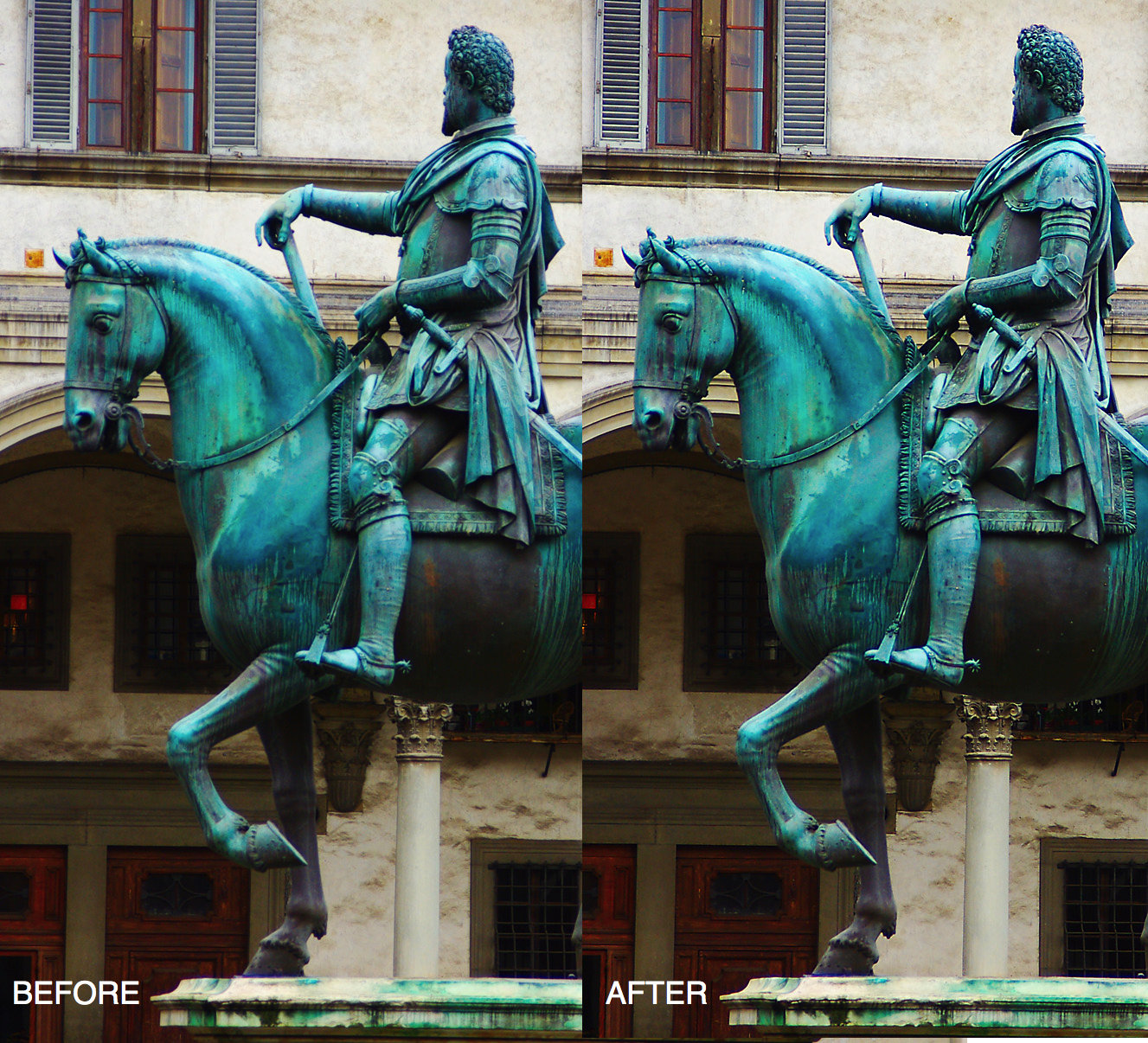
Sharpening does as its name suggests and sharpens the image making it look crisper and making the edges in the image more distinct.
In the darkroom the process is achieved by taking one negative and a slightly blurred positive image, sandwiching these together and making a very quick exposure of this sandwich. Then the exposure is completed using the negative. The resulting image has sharper and crisper edges than it would have had if the blurry (unsharp) mask image had not been used. The typical sharpening tool used in Photoshop and other graphics programs is named after this traditional darkroom process and is called the Unsharp mask.
In a graphics editor the Unsharp mask works by creating small halos along the edges in the photo. These halos enhance the contrast between the edges and the surrounding pixels making the edges look more obvious and giving the image a crisper and sharper look.
Here’s how to sharpen an image using the Unsharp mask:
Step 1
Sharpening should be done at the end of the editing process so finish doing all your edits to the image before you sharpen it.
Now create a flattened version of the image either by flattening or merging all the layers or press Ctrl + Alt + Shift + E (Command + Option + Shift + E on the Mac) to create a flattened layer at the top of the image. The Unsharp mask works only on the current layer so you need to have the image on a single layer for it to do its work.
Step 2
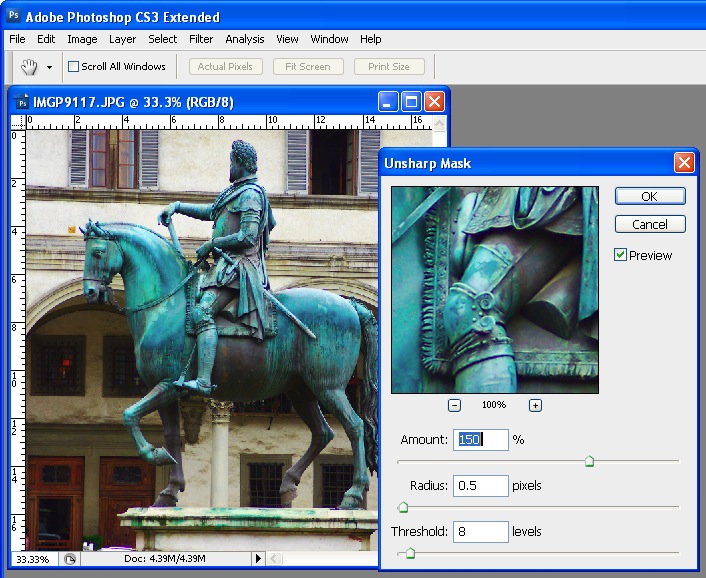
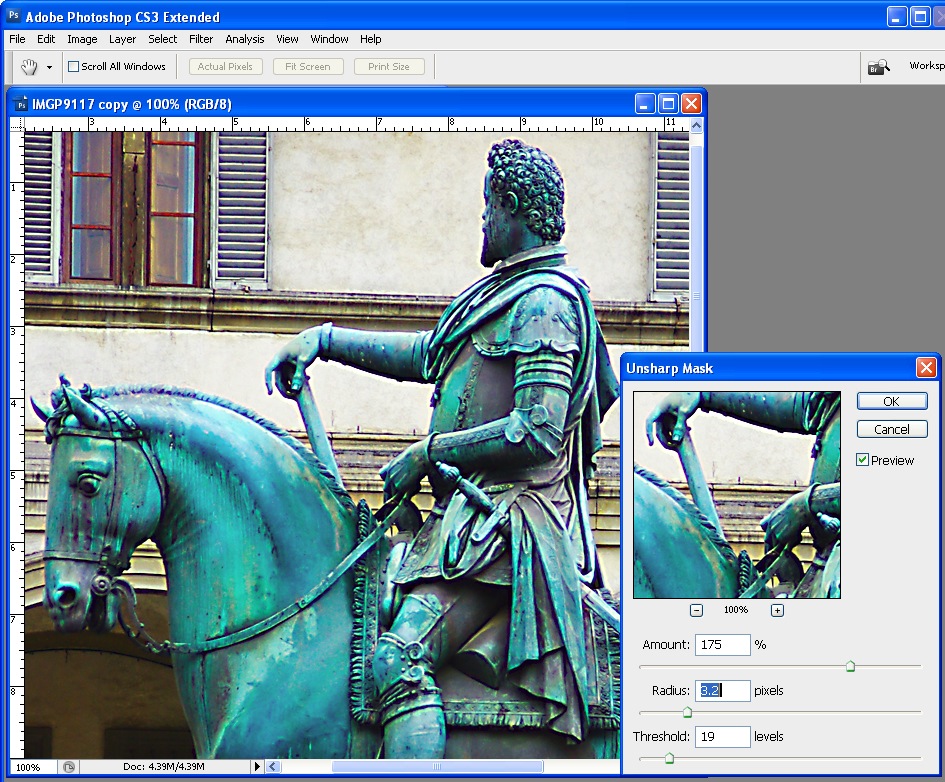
Choose Filter > Sharpen > Unsharp Mask. Set the Radius to somewhere between .5 and 1. This sets the width of the halos which are applied along the edges in the image – the smaller the radius, the smaller the halo and 0.5 – 1 is ideal – this is not always a situation where the more is better!
Set the Threshold to around 10. The Threshold value determines how edges are found – the higher the value, the more different adjacent pixels must be to be considered an edge so less of the image will be sharpened. A small value means that smaller differences in pixel values are considered an edge so more of the image is sharpened. The risk with a small Threshold value is that it can add noise to the image by enhancing edges in places where you don’t want to see them.
The Amount setting controls how much contrast is added to the edges – a higher value means more contrast and a more obvious sharpening. Start by setting this value to around 150.
Step 3
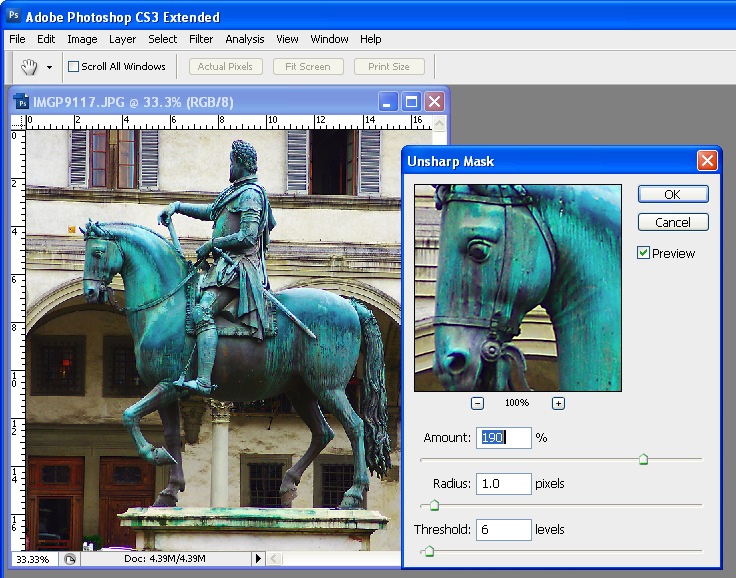
Take a look at your image and adjust the sliders from this starting point until you see more detail in the edges in the image but not so much that you see unattractive halos around the edges.
Typically, if you have an image with a lot of very fine detail you can use a very small radius value (so the halos are small) and a correspondingly high Amount value (so that the halos can be seen to sharpen the image). On the other hand, if you have an image without a lot of fine detail can use a larger radius say, 1 – 1.5 or more (which gives larger halos), and a smaller Amount setting because the halos will be bigger and more visible anyway.
Adjust the Threshold value so you get sharpening in the areas you are interested in being crisper but not so that it results in unwanted noise in the image.
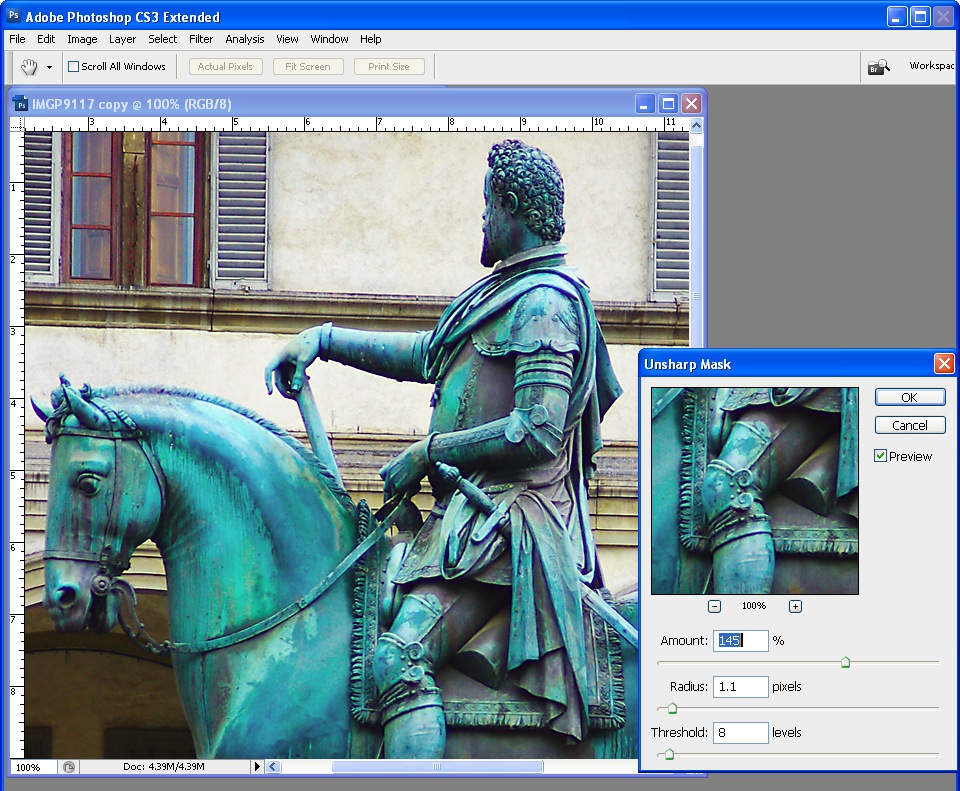
This image is nicely sharpened – you can see the crisper edges.
This image is over sharpened – notice the unsightly halos around the edges.
Tips
It is generally advisable to view the image at 100% when you are sharpening it so you can see the effect on the image. You can do this by sizing the image to 100% before launching the Unsharp mask tool. Alternately, use the 100% preview in the Unsharp mask dialog –click on the preview to see the unaltered image so you can compare it with the preview..
When you are sharpening for printing you can generally sharpen more heavily than you should do for onscreen viewing.
There are other sharpening tools available in Photoshop CS2 and later which do an even better job of sharpening than the Unsharp mask. I’ll look at these tools in a future post. For now, regardless of which graphics editor you use, you should have an Unsharp mask tool and it should work in a similar way to the Photoshop Unsharp mask shown here.
Tags: Photoshop, Sharpening


19 Responses to “How to Sharpen Photos: An Introduction” - Add Yours
March 6th, 2009 at 7:31 am
One trick that I use in Photoshop is to first convert the image from RGB to Lab color, then to apply the same technique to only the L (lightness) channel. This gives a slightly different end result, but one that I find more pleasing.
March 6th, 2009 at 7:36 am
I enjoy all the how to articles very much, but really wish not all(or at least most of) the post production articles revolved around photoshop. I know it is a very popular program, but there are alot of people using alot of other programs. We need help to.
March 6th, 2009 at 7:59 am
Excellent article. Thanks for the tips! Doing this correctly is something I’ve been trying to work on.
March 6th, 2009 at 7:59 am
Excellent article. Thanks for the tips! Doing this correctly is something I’ve been trying to work on.
March 6th, 2009 at 8:00 am
Hi Mark
A couple of things:
One is that we did a survey recently and we know there are lots of folk using other programs and we’re working hard to get you more tutorials on these programs out – so stay tuned!.
Second (this is a good one) – I wrote about Unsharp Mask specially in this introduction to sharpening simply because it is the tool available in most programs. So, check out your photoediting program for an Unsharp mask and you’ll find it will have an Amount and Radius setting and many also include the Threshold setting or something similar. You should be able to follow this step by step in most photoediting programs and you’ll get great results.
Post and let us know how you go – Helen
March 6th, 2009 at 8:27 am
Hi There:
Sharpening is a subject all on it’s own. It is an art in itself. I have read Bruce Fraser’s Image Sharpening for Photoshop CS2 and highly recommend it. He changed it from an art to a science in this book.
Now I like the sharpening system in Lightroom 2 and use it all the time.
I built the sharpening action from Bruce’s book an posted it on my web site here: http://mcgillveraystudios.ca/downloads.html , Give it a try as I used it before Lightroom with great success. Don’t forget that Bruce was the main man for Lightroom sharping before he passed away.
Mark McGillveray
March 6th, 2009 at 8:32 am
This is a great tutorial, and I know not everyone uses Photoshop, but it’s one of those tools you either love or hate. I discovered the High Pass filter way back in CS2, and since then, the unsharpen mask could drop off the face of the earth for all I care.
You really should do a tutorial on High Pass Filters next, and get users who can do it to compare. All the students in my classes prefer high pass to this too, as you can then use a mask to keep some parts of the photo sharper than others. I guess you can do that here too, and yeah, we all have our preferences.
March 6th, 2009 at 8:54 am
Thanks for the sharpening article.
The article repeats one old saw that is no longer quite right, namely that you should save sharpening for the very end of the process and that you should flatter after sharpening.
First, there are a number of circumstances in which it can be wise to apply some sharpening during the RAW conversion phase. Second, with the advent of smart objects and smart layers in Photoshop, it makes a ton of sense to do your sharpening on smart layers. I do a smart sharpen layer and a USM sharpen layer in this manner and I save these layers with the archival Photoshop file.
In addition, it is a very good idea to do some output sharpening after flattening and resizing the image. This sharpening is subtly designed for the particular final output of the image. Certain settings can work well for a small jpg, while quite different settings might be used to compensate for ink spread on a large print.
G Dan Mitchell
March 6th, 2009 at 11:55 am
I second Jonathan’s comment on the Lab Color and Lightness channel…works great and less obvious.
JRF
March 6th, 2009 at 8:08 pm
Thank you, this is really helpful, although has anyone else wondered why it’s called the ‘unsharp’ mask? :)I’m looking forward to trying this one out.
March 6th, 2009 at 10:27 pm
I third Jonathan’s comment on lab color lightness channel . Been using it for a year now.
March 6th, 2009 at 11:22 pm
Good article and can be used for GIMP too. And yes,photoshop is great but because financial reasons I use GIMP. And GIMP is great and I like to work on GIMP so if you can give us some articles related to it.
March 6th, 2009 at 11:29 pm
Very useful. One of the most important things I learned about sharpening is that it doesn’t just “sharpen”, but it can really make detail show through. If you have something with a lot of texture, sharpening will help make the image “pop”. That’s an important distinction, although a subtle one!
(Here’s an example of an image where sharpening brought out a lot of fine detail: Doorways. The original had a sort of smear around the door frame (it’s wood), and the pitted cement didn’t really show up either. Sharpening made those actually visible!
March 7th, 2009 at 12:48 am
Thank you for this article. Sharpening is something I really need practice with but could never really figure out, but this article is very helpful. I don’t have Photoshop (too pricey for me) but there are definitely details in this article that I can apply to the post-production programs I do use. The basic concepts, etc.
March 7th, 2009 at 4:54 am
for Jonathan and John:
I don’t go into “lab” any more and choose the “lightness” channel. Just do your sharpening, then go to “edit” and about 4th down from the top it should say, “fade unsharpen mask”. Click on that, from there you can click no the drop down and choose “lightness”.
if you want to do a second pass of sharpening, I’ll do the samething again, fade the sharpening again the same way, but drop the opacity to maybe 75% or so.
March 7th, 2009 at 1:07 pm
Great tutorial, thank you! I’ve read several and they just never answered my questions- this one did. I generally sharpen with the High Pass filter, but now I think I might give the Unsharp Mask a try.
March 8th, 2009 at 10:45 pm
After the processing of unsharpening I usually unsharp again with amount between 20 and 25 and radius between 75 and 85.
I don’t know how to say this in English: the image becomes more colorful.
ES
March 9th, 2009 at 9:06 pm
thanks for agreat article.
should i need to resahrpen after resizing the image?
March 11th, 2009 at 2:32 am
great quick tutorial on how to accomplish sharpening without over-sharpening. :D
Leave a Reply
