How many times have you created a neat effect on an image using Photoshop and then wanted to duplicate the effect on another image? The problem is that unless you’ve taken notes about what you’ve done, it is often difficult if not impossible to remember exactly the steps you took to get the final image.
While Photoshop has a History feature this is of limited use. One problem is that, by default, Photoshop only stores 20 history states so, if you’ve performed a lot of steps they may not all appear in the list. The second problem is that, even if you have configured Photoshop to store a large number of history states, all you see in the History panel is a brief description of what you did to the image such as Gaussian Blur, Apply Image, Blending Change and you don’t see the actual settings used.

The History panel in Photoshop lists the basics of what you’ve done but not the detail.
Here are some ways to improve on the basics and keep a log of your work:
Step 1
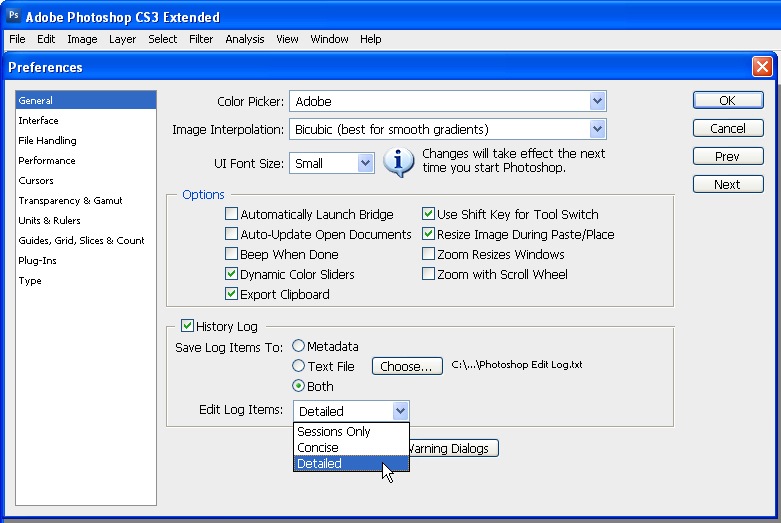
Before you start work on an image choose Edit > Preferences > General and select the History Log checkbox. You can select to save log items to the image Metadata, to a separate text file or to both. If you select either Text file or Both you’ll be prompted to enter a file name and a location to save the file to. Do this and click Save.
From the Edit Log Items dropdown list select Detailed. Sessions records only the time you spend working on a file, Concise records the Sessions information and the detail from the History palette and Detailed records the detail about the changes – it’s Detail you need.
Step 2
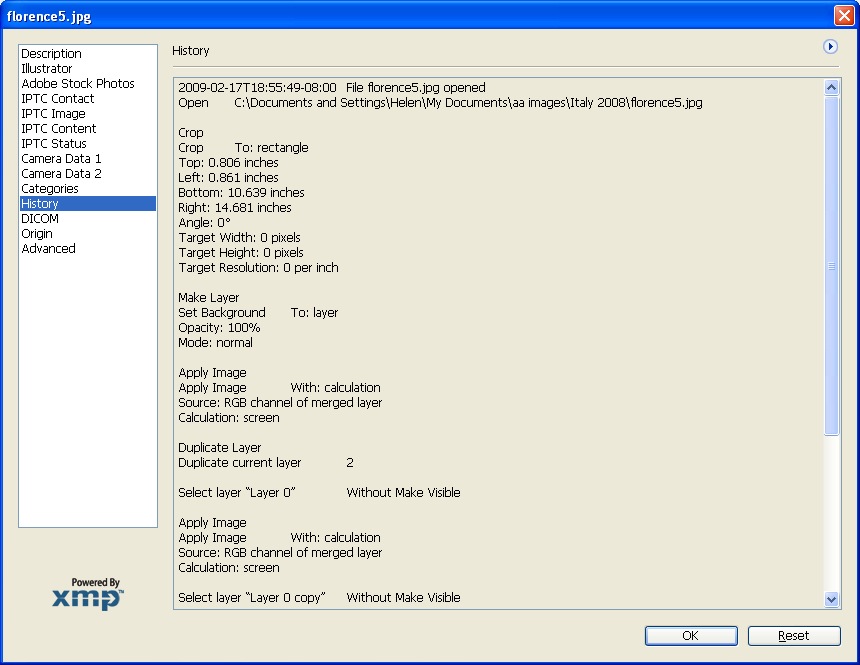
Now, when you work on an image, the detail is stored in the text file, the Metadata or both, depending on the setting you chose.
If you chose to store the data in a text file you can later open the text file with a word processor or a text editor such as Notepad on the PC.
If you chose to record the history in the image metadata choose File > File Info > History and you can read details of the edits you made to the image in the dialog. Use this information to perform the same steps on another image
Tip
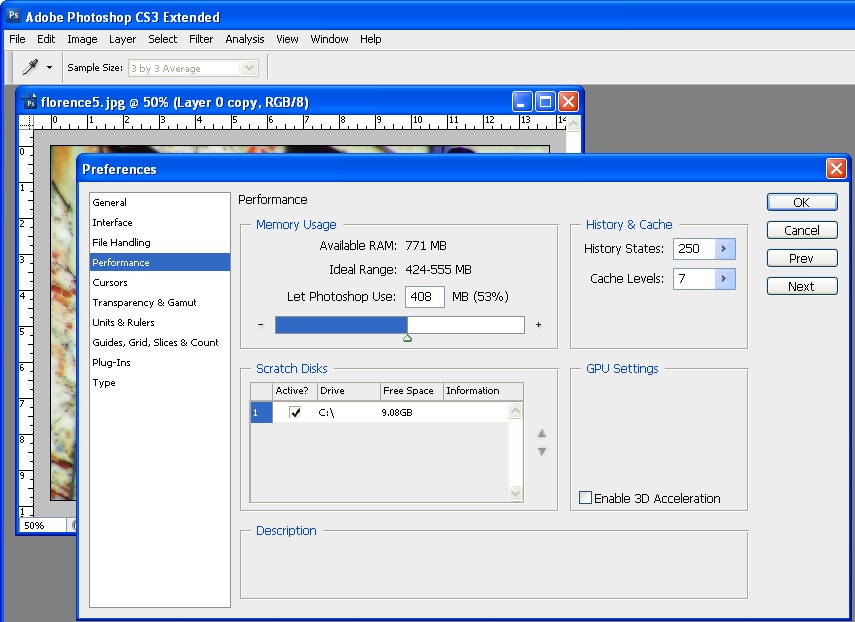
To configure Photoshop to store more than the default 20 history states, choose Edit > Preferences > Performance and set the History States value to a higher number. You should note that this History information is available in the History palette and only while the image is still open – it is lost when the image is closed – unlike the Log data which is stored permanently.





17 Responses to “How to Keep a Log of Your Work in Photoshop” - Add Yours
March 15th, 2009 at 2:45 pm
Thanks for this. I’ve never heard about it. Now off to share this link with others!
March 15th, 2009 at 7:24 pm
Why had I never heard of this… i also will spread the word!
@Prydie
March 15th, 2009 at 10:10 pm
Thanks for this, as someone just finishing the final stages of a degree in Design and Photography this tip will be very useful in saving me time when I have to document what I did in Photoshop…definitely saving this in my bookmarks!
March 16th, 2009 at 3:18 am
is the detail option available for Photoshop 7? is there an alternative?
March 16th, 2009 at 5:25 am
This is such a helpful tip.
March 17th, 2009 at 11:01 pm
Beware! The higher you raise your history states the more RAM you will eat up and risk crashing the program!
March 17th, 2009 at 11:44 pm
Wow, over 15 years of PS and I still learn some great stuff! This sounds wonderful for billing purposes too, if you’re not using a different tracking method and keep working on the file [aka, not just leaving files open].
March 18th, 2009 at 11:05 am
Wonderful! Thank you for the tip. :)
And I agree with jeremy edmonds: lots of history => lots of RAM.
March 20th, 2009 at 3:36 am
Thanks so much for this tip! I’ve always wanted this. Writing it down takes too much time. I’ll put this to good use.
March 20th, 2009 at 5:38 am
thats a great idea. i don’t know why I didn’t htink of that sooner.
March 20th, 2009 at 10:47 am
tnx for the lecture…i have to share this to my co-photoshopers!
March 21st, 2009 at 11:48 am
Won’t this increase the file size of the images?
March 22nd, 2009 at 10:29 pm
What would make this even better is some facility to playback the log i.e. have all of the steps applied to an image.
March 23rd, 2009 at 6:28 pm
I`ve been using photoshop off and on for many years and through many of the different versions.
There`s a lot I know but it still amazes me about how much I don`t know about this program.
Love these tips
Keep them coming
March 25th, 2009 at 10:58 am
Thank you! I have been trying to figure this out for ages!!!
For Mac Users: Select – Photoshop>Preferences>General or Command+K
March 27th, 2009 at 6:31 am
Helen, there is an added bonus having a log of your steps. You can use it to create your own “actions” and save it as a shortcut key. May I suggest this as one of your future topics. I know your fans will be more than appreciative. Keep up the great work.
April 15th, 2009 at 2:38 pm
In answer to Lucienne, I believe the History log was first introduced in Photoshop CS so there is no viable alternative to it in versions of Photoshop prior to this.. it’s paper and pencil I’m afraid.
Leave a Reply